Recently, SEBI has introduced a new set of regulations in which platforms can not directly fetch the MF holdings and transaction data on behalf of users. You, as a a user, have to upload a QR code to allow platforms to get your MF holdings and transaction data.
So in this article, we will quickly take a look at the new workflow of refreshing your MF portfolio on sharpely.
Step 1
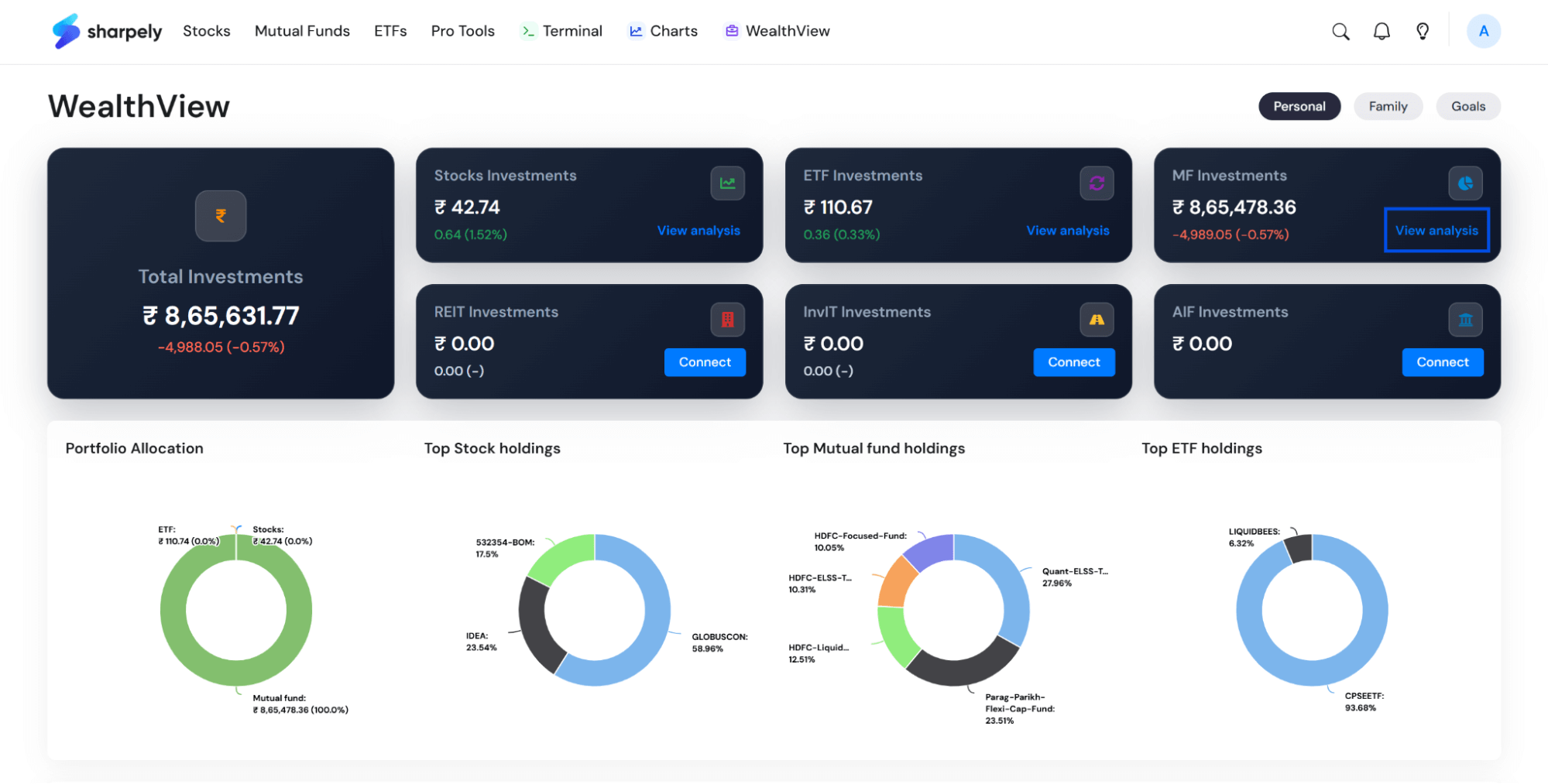
Open WealthView, go to MF Investments, and click on the ‘View Analysis’ button.
Step 2
Click on the Refresh Portfolio Button.

Step 3
Submit your PAN Number and click on the Proceed to MF Central button.

Step 4
Enter the OTP received that you have received on your mobile via SMS.

Step 5
Click on Select All AMCs with other selections as shown in the image below. You don’t need to change anything in the first two selections. Then click on Generate QR Code button.

Step 6
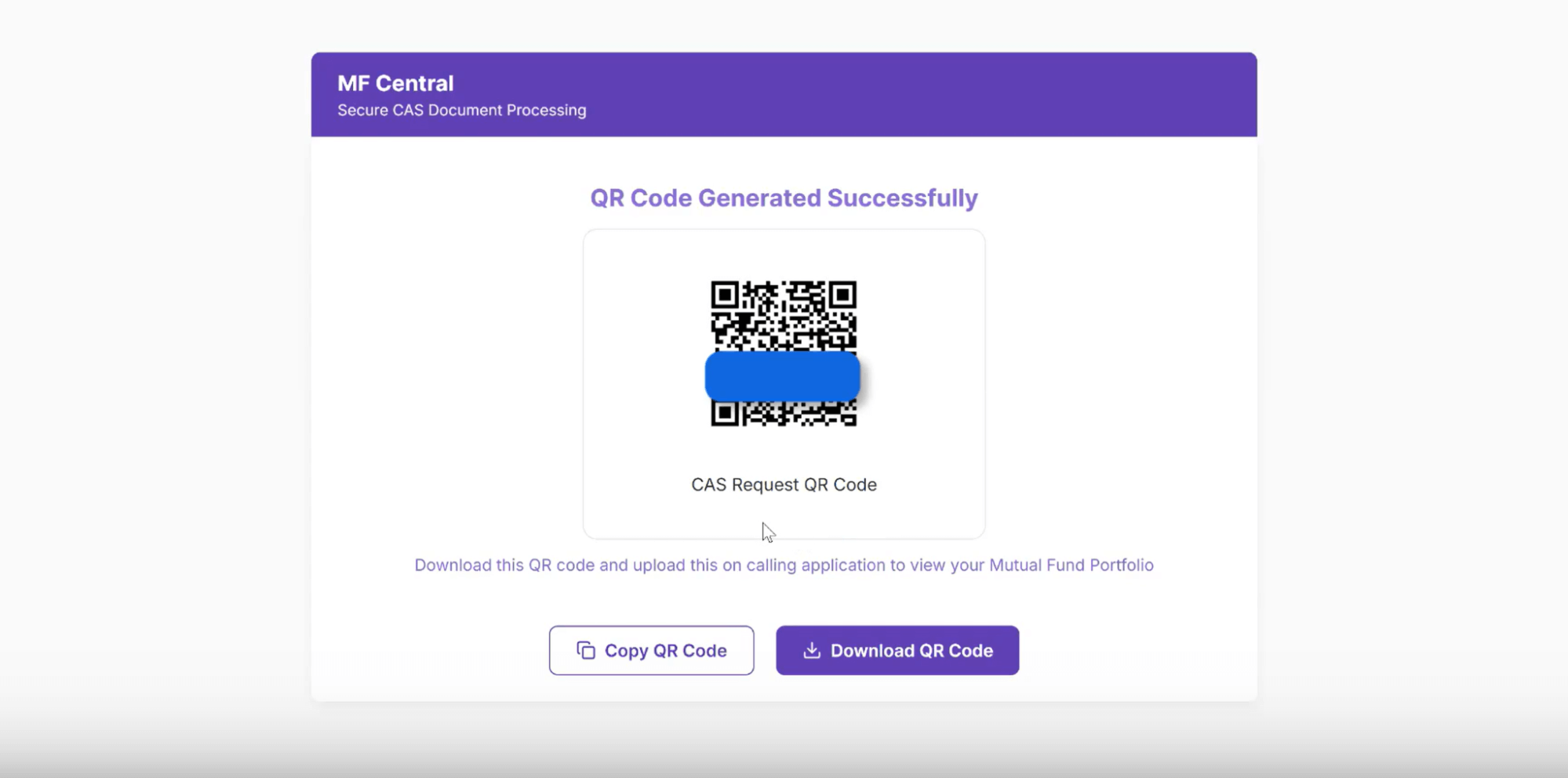
Now you will be able to see the QR Code as shown in the below image. Click on the Download QR Code button and then click on the Continue button. You will be redirected to sharpely. If you don’t get redirected then click on the sharpely tab that will be on the left side of the current tab.
Step 7
Click again on the Refresh Portfolio button and then click on the upload existing QR button.

Step 8
Select the image and then click on the Fetch Portfolio button.
That is it! Now your latest portfolio will be fetched, and you will be able to see the updated holdings.

