This parameter is only available for the static stock basket and dynamic stock strategy using the screener and factor model.
In this article, we will discuss the newly introduced ‘exit model’ parameter. As an investor, you may have some predefined rules for entry. For example, you will only buy stocks with ROE and ROCE greater than 15 and a PE ratio less than 40. The same thing can be made for exits as well!
You may have some different rules for exits. Till now, what used to happen was that either your stocks would be removed during rebalancing or they would be removed when the stop loss is hit. But with the ‘Exit Model’ we have now introduced the third option that can be a game changer in the strategy construction.
Now you can define rules for exit as well. These rules can be based on fundamentals, technicals or a mix of both. For example, you will exit from stock if the PE ratio goes above 50 or the price falls below 21-day EMA. and you can do that easily on sharpely. Let’s see how to do it!
Step 1: Enable Exit Model
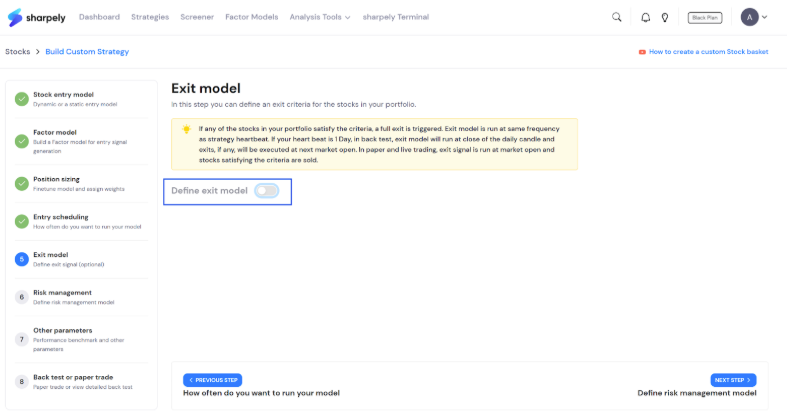
When you move to the exit model, by default it will be disabled as shown in the image below. You need to enable it by clicking on the toggle.
Once you enable it, you will be able to see the condition block similar to the advanced builder.
Step 2: Provide exit rules
Here, we will provide exit rules. In our example, we are taking the exit criteria that we discussed earlier. You can see the same in the image below.
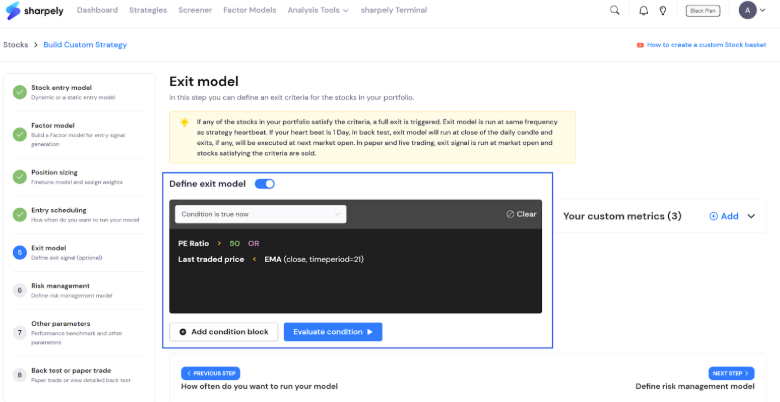
Here, you can create complex exit rules as well. You can create custom metrics of your own and also add condition blocks if you want to build a complex query.
Step 3: Evaluate Exit Model
Once we are satisfied with the conditions provided in the model, you can check the list of stocks that are fulfilling the exit conditions by clicking on the evaluate condition button.
You will be able to see the list of stock as shown below.
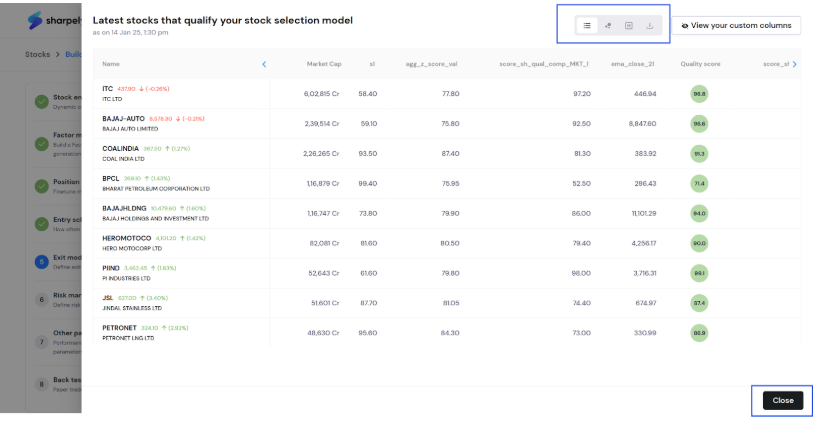
Note that you can generate factor maps, heat maps and download the list by clicking on the icons available at the top (highlighted in blue). You can also add more columns. After taking a look at them, you can click on the close button available at the bottom left.
And that is it for this article. In the next article, we will talk about ‘risk management’. This parameter is available for all static and dynamic stock strategies and Static ETF strategies. It will not be available in the MF strategy builder.
See you in the next article!

